> For the complete documentation index, see [llms.txt](https://docs.dataplex-consulting.com/llms.txt). Markdown versions of documentation pages are available by appending `.md` to page URLs; this page is available as [Markdown](https://docs.dataplex-consulting.com/data-catalog/rosterguard-app/using-the-app.md).
# Using the App
This page walks the five screens of RosterGuard in the order a monthly screening cycle uses them: bind and map the roster, run the screen, resolve possible matches with recorded dispositions, monitor the roster's enrollment signals, and export the audit trail. The app's job is to make every determination your reviewers record defensible: every hit carries its evidence, every disposition carries a reviewer identity, timestamp, and rationale, and every run pins the source vintages it screened against.
## Roster setup
Roster setup is where you bind the table holding your provider roster and map its columns to the fields the screening engine uses, with live coverage indicators per field, so gaps in DOB or NPI coverage are visible before they weaken a screen, not after. Multi-site organizations reconciling rosters from HRIS, credentialing, and scheduling systems can validate here that the consolidated roster supports Strong and Likely matching, while Possible matches remain available for advisory review. If a support agent reports a greyed-out **Continue** button in the setup wizard, it's the DOB gate: the step stays disabled until date of birth is mapped and at least 80% of DOBs are parseable. The reviewer can still proceed by ticking the degraded-mode acknowledgment, which allows the screen to continue without DOB-driven Likely matching and is recorded on the run.
## Screen & run
A completed run answers the two questions a screening program gets asked first: what was screened, and against what. The freshness tiles above the run button show the exact vintage of each source before you commit, and they are gatekeepers, not labels. A tile marked **AGING** means that source is older than its expected refresh window but still within the screening threshold: you can run, and the vintage is pinned to the run record either way. If the exclusion list itself goes materially stale, the run button is **blocked** until you acknowledge the staleness. Screening against an outdated list and not knowing it is the one failure mode the app refuses to allow silently. To proceed anyway, tick **Run against stale LEIE - record acknowledgment**: the screen runs immediately with the stale vintage pinned to the run record. Otherwise, wait for the source to refresh. Scheduled runs proceed but stamp a stale-data warning on the run record. The results panel shows rows screened and hits graded by match strength: Strong (exact NPI), Likely (name + DOB), and Possible (advisory name + state).
## Review queue
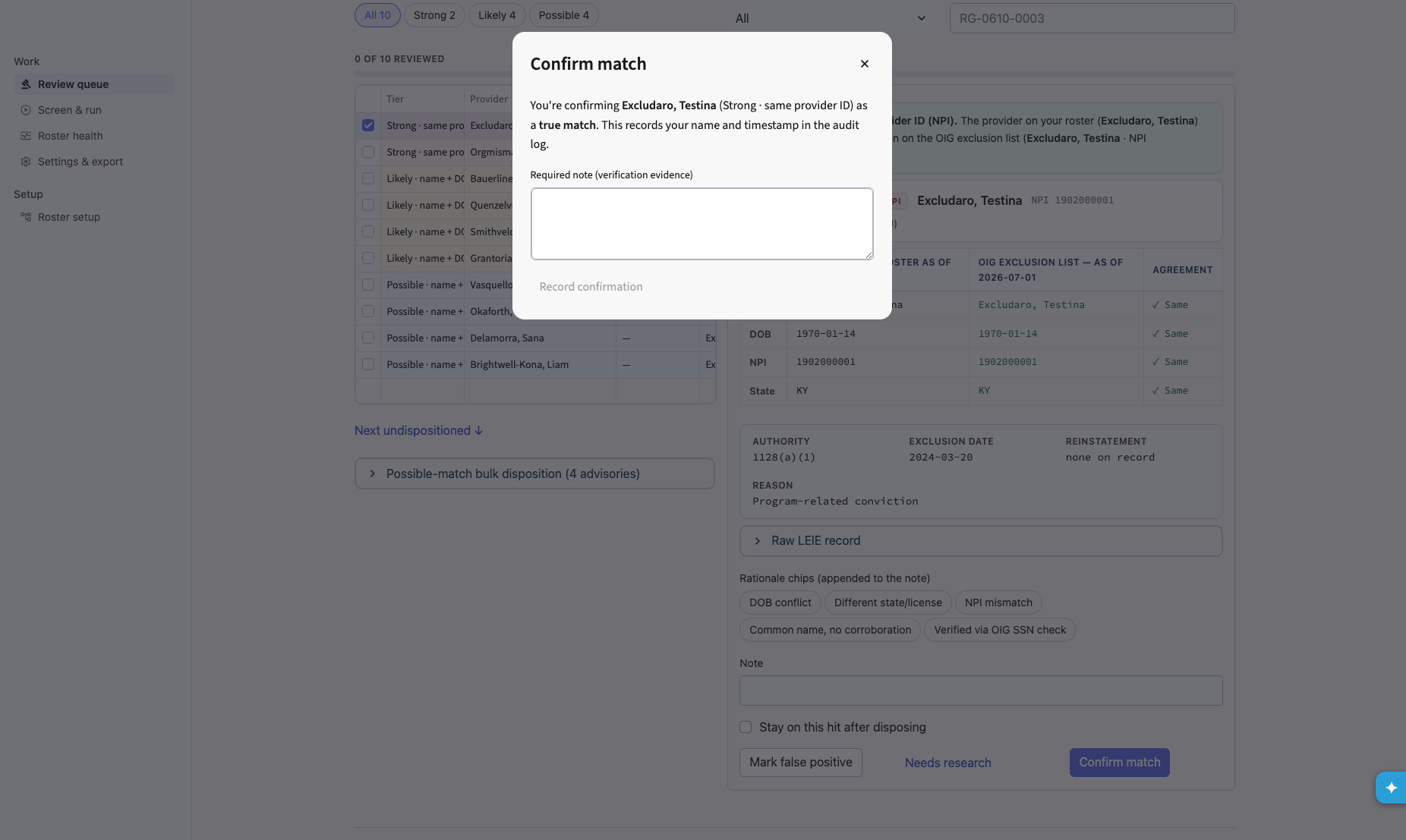
The review queue is the match-resolution workflow. Each hit opens an evidence panel: which fields matched exactly, which agreed after normalization, which conflict, and the substance of the exclusion: authority, date, and a plain-language description, not just a statute code. For each hit your reviewer records one of three dispositions: **Confirm match** (the only one that enforces a required note: a written verification note that becomes part of the audit record), **Mark false positive** (with an optional rationale), or **Needs research** (parks the hit, with an optional note, when the evidence isn't decisive yet; a recorded determination, not a skipped one). On later screens, when the same person/record pair reappears unchanged, the app additionally offers **Re-apply prior false positive** so the queue doesn't refill with already-resolved names every month. Every action is an append-only audit row with the reviewer's identity and timestamp; determinations are made by your reviewers, never by the app.
## Roster health
Roster health is the continuous-monitoring view of the four NPI-based signals: deactivated NPIs on your roster, providers missing from the current PECOS enrollment snapshot, active opt-out affidavits, and revalidations due within 90 days, each with the source vintage it was checked against, plus your screening and disposition trend over time. This is the page that turns a screening tool into roster hygiene: the items here are data-quality defects that become payment problems if nobody owns them.
## Settings & export
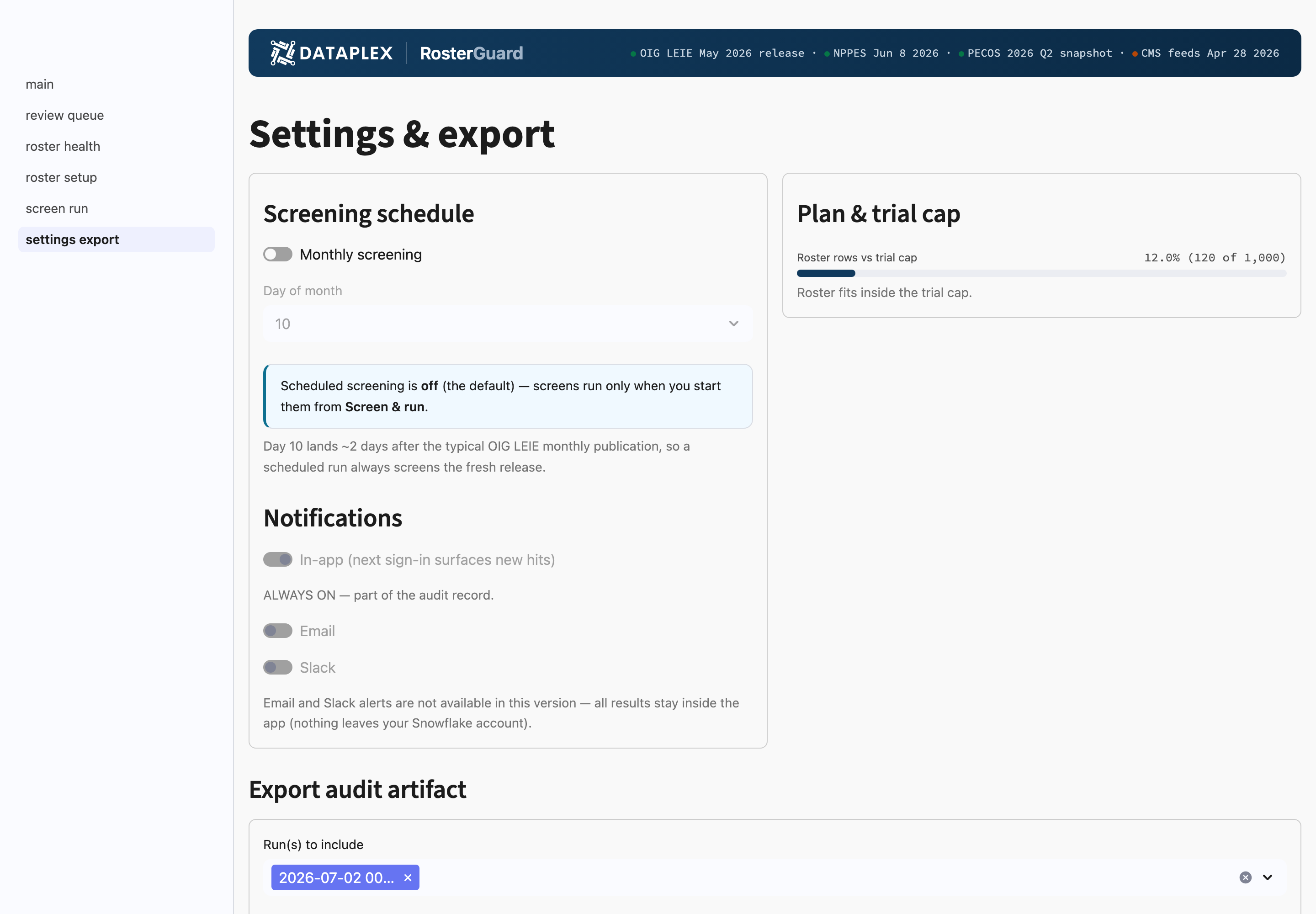
Settings & export holds the monthly schedule and the audit artifacts. The schedule is opt-in: the first time you enable it, Snowsight asks you to grant EXECUTE TASK and EXECUTE MANAGED TASK so screens can run as a serverless task in your account on your chosen day each month; disable the toggle any time to suspend it. Exports come in two forms: a **CSV audit log** (every run and every disposition, with notes) and a styled **HTML evidence pack** (a self-contained report with per-hit evidence and reviewer determinations, ready to file with a surveyor or drop in a data room). Your review queue, dispositions, and run history live in your account, survive upgrades, and stay readable if a trial expires.
The page also shows the **Plan & trial cap** meter (captioned "Roster rows vs trial cap"), which tracks your bound roster size against the current plan's cap (caps are enforced server-side at screen time, so the meter is the same number the engine uses), and the **run log**: every screen with its date, type (manual or scheduled), rows screened, status, and the exact source vintages used. Hits by match strength aren't in this table; find them in **Screen & run > Run history** or the HTML evidence pack. When a surveyor asks whether October's screen happened and what list it used, this table is the answer, no SQL required.
## Troubleshooting
**A source tile shows AGING. Can I still run?** Yes. AGING means the source is past its expected refresh window but within the screening threshold; the vintage used is pinned to the run record either way. If the exclusion list goes materially stale the run button blocks instead, and the block clears when the source refreshes (reference data updates ship bundled with the app). For a monthly attestation, cite the vintage stamped on the run record.
**My roster has no date-of-birth column at all.** The screen still runs: Strong (NPI exact) and Possible (advisory name + state) matches are unaffected, but the Likely (name + DOB) matches, the ones that recover the \~90% of exclusion records an NPI-only check can't see, are skipped entirely, and the run is flagged as degraded. Treat this as temporary: most HR or credentialing systems hold DOB even when the extract omits it, and adding the column to the bound view restores full coverage on the next screen.
**Two reviewers worked the same hit.** Both determinations are recorded: the audit trail is append-only and nothing is overwritten. The queue displays the most recent disposition as the current state, and the full sequence stays visible in the export.
### A hit I marked false positive came back on the next screen
**Cause:** the underlying exclusion record changed since your determination, so the carry-forward suggestion was withheld on purpose.
**Solution:**
1. Open the hit's evidence panel and compare it against your prior disposition (both are in the audit trail).
2. Record a fresh disposition; the prior one remains in the append-only history.
### The review queue shows advisory matches I don't want my reviewers working
**Cause:** Possible matches are advisory by design (exact name + state with no DOB corroboration) and they behave differently from Strong and Likely matches.
**Solution:**
1. Filter the queue by match strength and route Strong and Likely matches first.
2. Treat Possible matches as research items: verify via OIG's online SSN check before any adverse action.
### Only part of my roster got screened on the trial plan
**Cause:** the trial plan caps screening at 1,000 roster rows, enforced server-side at screen time; rows beyond the cap aren't screened. Exports themselves are fully functional and carry no watermark.
**Solution:**
1. Exports of the screened rows are fine for internal evaluation work.
2. Purchase a plan to lift the 1,000-row cap; see [Security & Plans](/data-catalog/rosterguard-app/security-and-plans.md).
### The scheduled screen didn't run
**Cause:** the schedule's two privileges (EXECUTE TASK, EXECUTE MANAGED TASK) were revoked, or the toggle was disabled.
**Solution:**
1. Check the schedule status on Settings & export.
2. Re-grant the privileges if your admin team revoked them in a privilege review.
3. Run an on-demand screen meanwhile; it needs no account-level privileges.
{% hint style="warning" %}
RosterGuard is a screening aid. Match dispositions are determinations made by your organization's reviewers. Likely and Possible results are potential matches; verify via OIG's online SSN check before adverse action.
{% endhint %}
***
**RosterGuard docs:** [Overview](/data-catalog/rosterguard-app.md) · [Quickstart](/data-catalog/rosterguard-app/quickstart.md) · [Understanding Matches](/data-catalog/rosterguard-app/methodology.md) · [What It Checks](/data-catalog/rosterguard-app/data-dictionary.md) · [Security & Plans](/data-catalog/rosterguard-app/security-and-plans.md)
---
# Agent Instructions
This documentation is published with GitBook. GitBook is the documentation platform designed so that both humans and AI agents can read, navigate, and reason over technical content effectively. Learn more at gitbook.com.
## Querying This Documentation
If you need additional information that is not directly available in this page, you can query the documentation by asking a question.
Perform an HTTP GET request on the following URL with the `ask` and `goal` query parameters:
```
GET https://docs.dataplex-consulting.com/data-catalog/rosterguard-app/using-the-app.md?ask=&goal=
```
`ask` is the immediate question: it should be specific, self-contained, and written in natural language.
`goal` is what the user is ultimately trying to achieve, the reason they need the answer. Sharing it helps GitBook give you a better, more relevant answer. A goal is most helpful when it describes the outcome the user wants rather than restating the question. For example, with `ask=how do I create an API token`, a goal like `automate deployments from our CI pipeline` lets GitBook tailor the answer to that use case.
The response will contain a direct answer to the question and relevant excerpts and sources from the documentation.
Use this mechanism when the answer is not explicitly present in the current page, you need clarification or additional context, or you want to retrieve related documentation sections.